




Search Flags Unlimited
Creating stunning custom flags and banners starts with properly prepared artwork. Whether you're a marketing manager launching a new campaign, a graphic designer crafting the perfect visual, or a small business owner promoting your brand, understanding the technical requirements for flag and banner production is essential.
Let's dive into the essential steps that will transform your creative vision into high-quality printed products that stand out and make an impact.
Start with the Right Template
Before you begin designing, the most critical first step is downloading and using the correct template for your specific flag or banner product. Each custom flag type has its own unique template that includes the exact dimensions, bleed areas, safe zones, and technical specifications required for production. Using the proper template from the start prevents costly mistakes, eliminates the need for last-minute revisions, and ensures your design elements are positioned correctly.
Templates serve as your blueprint, showing you where text and important graphics should be placed to avoid being cut off or appearing in hemmed areas.
File Format Requirements
Submitting your artwork in the correct file format is absolutely essential for successful production. Professional flag and banner printing requires vector-based files or high-resolution raster images that maintain quality at large sizes. The industry-standard formats ensure compatibility with production equipment and preserve your design's integrity throughout the printing process.
Remember, the file format you choose impacts the quality and printability of your final product. Vector formats like .ai and .eps are ideal for logos, text, and graphics that need to scale without losing quality. Raster formats like .psd and .tif work best for photographic imagery but require careful attention to resolution requirements.
Colour Management for Optimal Results
Working in CMYK Colour Space
Proper colour management is critical for achieving the vibrant, accurate colours you expect in your finished flags and banners. All vector artwork should be designed within a CMYK colour space, specifically using the U.S. Web Coated SWAP V2 profile. This industry-standard colour space ensures your colours translate predictably from screen to print.
When assigning colours to your design elements, use coated Pantone values whenever possible. Pantone colours provide a standardized reference that helps printers match your intended colours more accurately. This is especially important for brand colours that must remain consistent across all marketing materials.
- Set Colour Mode to CMYK: Configure your design software to work in CMYK from the beginning
- Apply Pantone Coated Values: Select colours from the Pantone Coated colour library for accuracy
- Avoid Colour Mixing: Never blend Pantone spot colours with CMYK process colours
- Proof Your Colours: We are able to provide colour samples or proofs before final production, given enough lead time!
Resolution Requirements
Resolution is one of the most frequently misunderstood aspects of preparing artwork for large-format printing. Unlike standard desktop printing, flags and banners are viewed from a distance, which changes the resolution requirements significantly.
Creating your artwork at the correct resolution ensures sharp, clear imagery without unnecessarily large file sizes that are difficult to work with and transfer.
Working at 100 PPI at actual size strikes the perfect balance between image quality and file manageability. Higher resolutions like 300 PPI, while standard for brochures and business cards, create unnecessarily large files for flag printing without providing visible quality improvements at typical viewing distances.
Trust the 100 PPI guideline, as it's specifically calibrated for large-format outdoor display materials.
Essential Preparation Tips
Beyond the basic technical specifications, several critical preparation steps ensure your artwork prints flawlessly. Taking time to properly prepare your files demonstrates attention to detail and prevents costly reprints or delays.
Need assistance or have questions? The Flags Unlimited team is here to help. Don't hesitate to contact your sales representative for guidance, template access, or technical support. We're committed to helping you achieve perfect results every time.

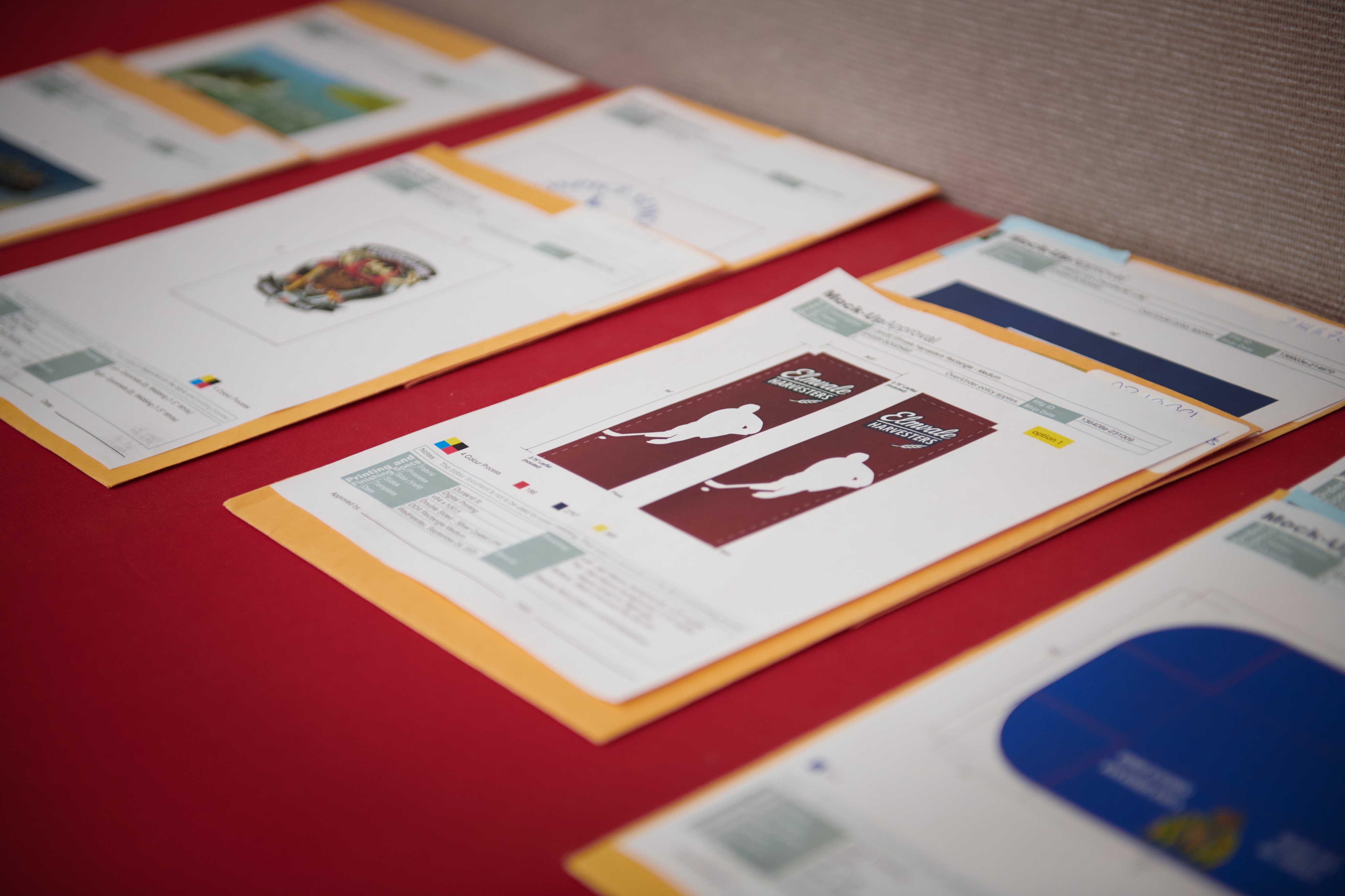
Ready to submit your custom flag artwork? Learn the two key submission methods (Email vs. FTP), file size limits, and a critical checklist to avoid common errors like using RGB or low resolution.
Subscribe to our newsletter

Barrie, ON L4M 4A5 Canada